
Getting Your Data into Galaxy
Overview
During the course of using BRC-Analytics and working through configurations for many of the workflows, you will be presented with a step that looks like this:
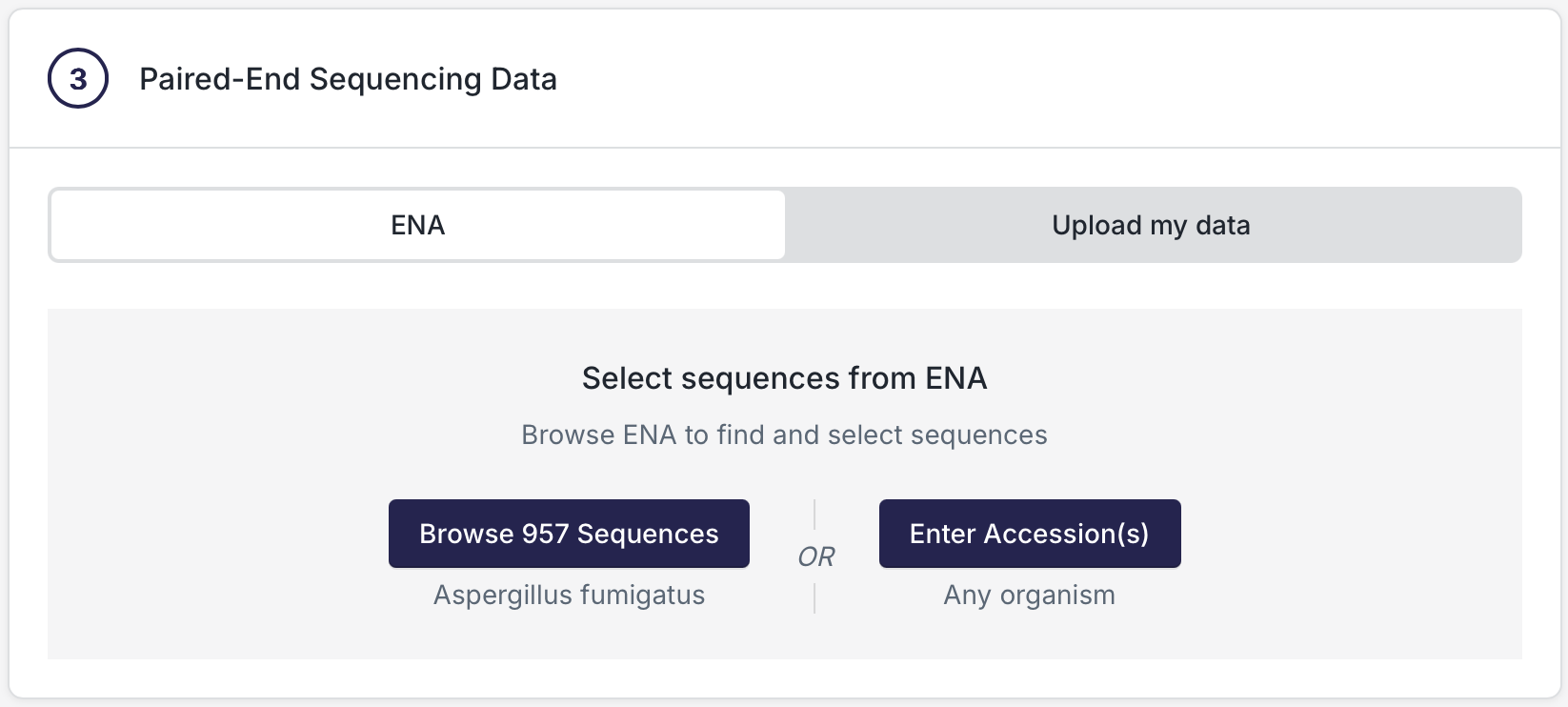
which makes it really easy to fetch public data from SRA/ENA. But what if your data is sitting on your laptop, or on your local network shared drive, or on another web site, or in a cloud storage service? You can click the "Upload my data" option in this dialog, which puts off dealing with data until you arrive at Galaxy:
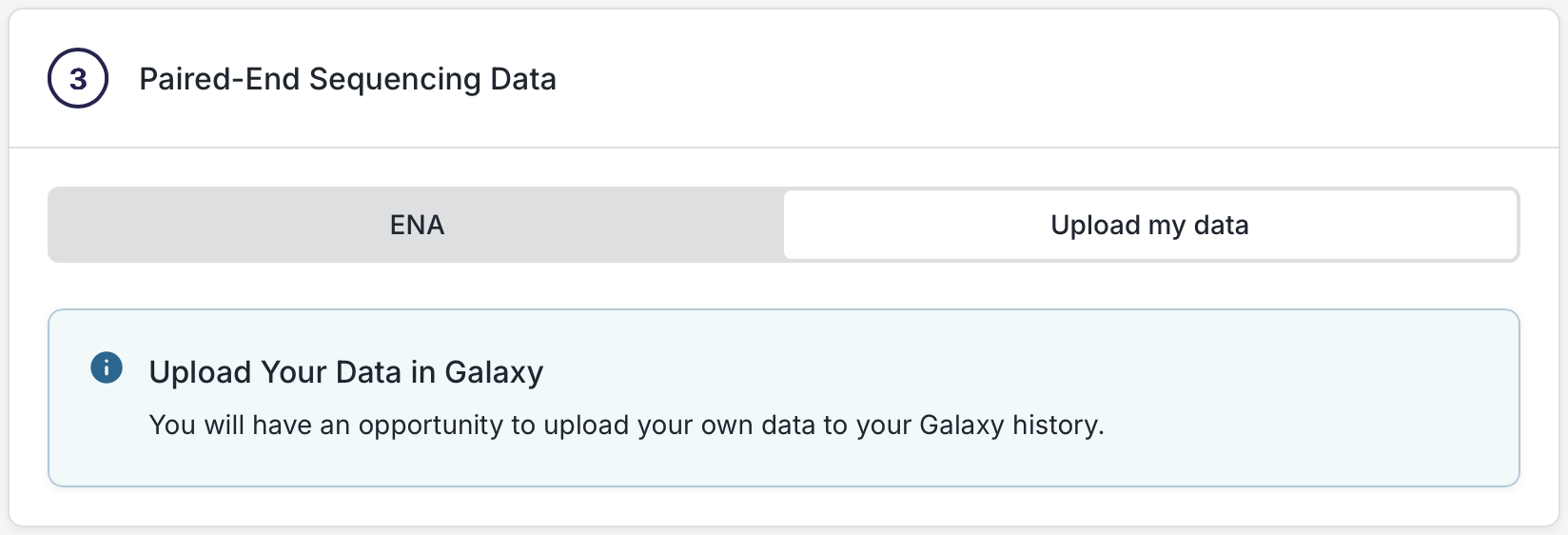
So the question is: how do you get your data into Galaxy once you get there? Galaxy has a plethora of ways to get your data into Galaxy so that you can carry on with your analysis workflows. Here's a comprehensive list:
1. Uploading Data Directly in a Workflow Run
When you launch a workflow from BRC-Analytics, you will land on a workflow run page where each dataset input has a + Create button. Clicking it opens a section with two tabs:
Create collection — Select and organize datasets already in your current history into a collection to pass to the workflow.
Upload Files to Add to Collection — Upload new files directly into the workflow input. This opens an upload interface similar to the standalone Upload Tool (see section 2), but without the tabs across the top. A hint above the buttons indicates the file type(s) the workflow expects (e.g., fastqsanger.gz or fastqsanger). The same buttons are available along the bottom: Choose Local File, Choose from Repository, and Paste/Fetch Data.
2. The Upload Tool
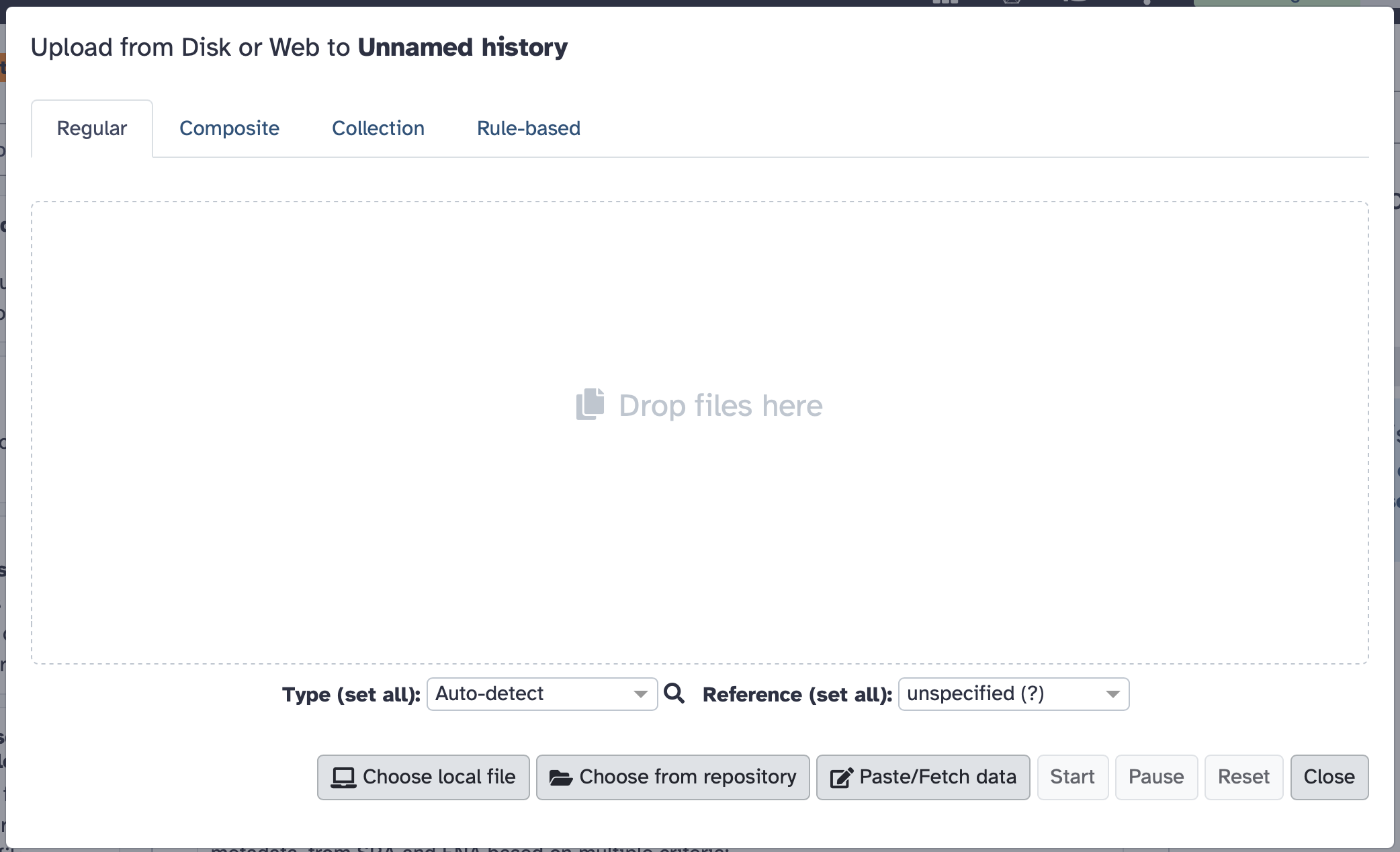
The Upload tool is accessible via the activity bar on the left side of the page (look for the arrow/upload icon). The dialog has four tabs across the top and action buttons along the bottom.
Tabs
Regular (default) — The standard single-file or multi-file upload interface. Use the buttons along the bottom to add files (see below).
Composite — For uploading composite dataset types that consist of multiple files (e.g. formats that require a data file plus an index file). It is unlikely to be needed in the context of BRC-Analytics.
Collection — Upload files and organize them into a dataset collection (e.g., list, paired, or list:paired) so they can be used as a single workflow input.
Rule-Based — A powerful bulk import interface where you provide a table or list of URLs/accessions, then define rules (column assignments, transformations, filters) to map them to dataset names, types, genome builds, and collection structures. Can load the initial metadata from a pasted table, a CSV/TSV, or from an existing dataset in your history. Ideal for importing dozens to hundreds of files at once and organizing them directly into collections.
Buttons
Choose Local File — Drag and drop or browse to select files directly from your computer. Supports most common bioinformatics formats. You can set the file type and genome build at upload time, or let Galaxy auto-detect them.
Choose from Repository — Browse and import from configured remote file sources. On usegalaxy.org this can include cloud storage (Google Drive, Dropbox, AWS S3, WebDAV-based services like Nextcloud/ownCloud/EUDAT B2Drop), InvenioRDM repositories, Dataverse instances, and iRODS. Users can configure their own personal remote file sources under User Preferences → Manage Your Remote File Sources which can be accessed from the "+ Create New" at the bottom of the repository dialog box after clicking the "Choose from repository" button.
Paste/Fetch Data — Paste raw text data directly (e.g., a FASTA sequence, a BED interval, a list of IDs), or paste one or more URLs (HTTP, HTTPS, FTP). Galaxy fetches the remote file and deposits it into your history. Supports multiple URLs at once (one per line).
Note: FTP upload is not currently supported on usegalaxy.org (it is available on usegalaxy.eu and other instances).
3. "Get Data" Toolbox — Built-in Data Source Connectors
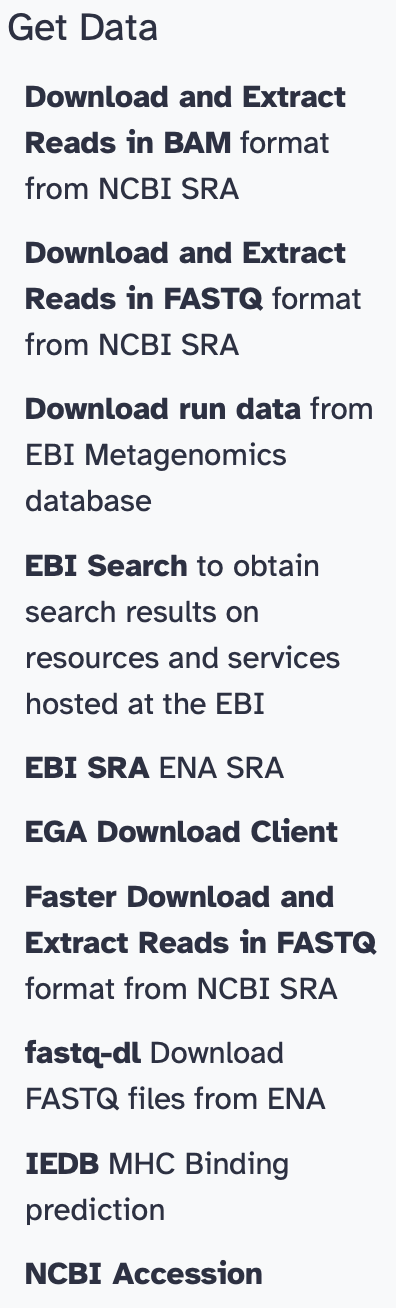
These are Galaxy tools that act as query interfaces to external databases, depositing results directly into your history. Note that most of these tools have considerable documentation under the configuration section when viewed in the Galaxy interface, and many also list tutorials demonstrating their use below that documentation.
UCSC Main Table Browser — Query and download genomic intervals, gene annotations, conservation tracks, repeat elements, SNPs, and more from UCSC's databases for dozens of organisms and have the results sent directly back to Galaxy.
NCBI Accession Download — Fetch sequences by GenBank/RefSeq accession numbers (nucleotide or protein).
Download and Extract Reads in FASTQ format from NCBI SRA (fasterq-dump) — Provide one or more SRA run accessions (SRR, ERR, DRR) and Galaxy downloads and converts the reads to FASTQ directly. Supports paired-end splitting.
Download and Extract Reads in BAM format from NCBI SRA — Same as above but outputs aligned reads in BAM format.
EBI SRA — Browse or query the European Bioinformatics Institute's Sequence Read Archive and import datasets directly.
EBI Search — Search and retrieve data from EBI's cross-database search service.
Download run data from EBI Metagenomics database — Retrieve metagenomic run data from the EBI Metagenomics (MGnify) database.
EGA Download Client — Download controlled-access datasets from the European Genome-phenome Archive.
NCBI Datasets Genomes — Download genome assemblies, annotation files, and metadata by NCBI accession or taxon.
NCBI Datasets Gene — Download gene records and associated sequences by gene ID or symbol.
UniProt — Query and download protein sequence and functional annotation data from UniProt.
Unipept — Analyze metaproteomics data using the Unipept database.
IEDB — Fetch immune epitope data from the Immune Epitope Database.
Protein Database Downloader — Download protein sequences from major databases.
fastq-dl — Download FASTQ files from SRA or ENA by accession.
pysradb search — Search and retrieve metadata and data from NCBI SRA using pysradb.
4. Data Libraries
Galaxy Data Libraries are server-side shared data stores curated by administrators (or by users with appropriate permissions). You can import datasets from a library directly into your history without re-uploading, making them useful for shared reference files (genomes, annotation sets, test datasets). In the current usegalaxy.org interface, access Libraries via the Libraries button in the activity bar on the left side of the window. See the Data Libraries documentation (note: screenshots on that page may be out of date for the current UI) for more details.
5. Shared & Imported Histories
Access all history views via the Histories button in the activity bar on the left side of the page. The panel has four tabs:
My Histories — Your own histories. From here you can switch active histories or copy datasets between them without re-uploading.
Histories Shared with Me — Histories that other Galaxy users have shared directly with your account. You can import datasets from these into your own history.
Public Histories — Publicly accessible histories published by any Galaxy user. Useful for reproducing published analyses or finding example datasets. You can import datasets from these into your own history.
Archived Histories — Your own histories that have been archived.
6. Programmatic / API Access
Galaxy REST API — Galaxy exposes a full REST API. You can upload files (multipart POST to /api/tools using the upload tool), fetch URLs, create histories, and populate them with datasets entirely programmatically using any HTTP client.
BioBlend (Python library) — A Python wrapper around the Galaxy API. Key methods include gi.tools.upload_file() for local files, gi.tools.put_url() for remote URLs, and dataset copying between histories. Enables scripted, reproducible data ingest as part of larger pipelines.
galaxy-upload CLI — A command-line utility (galaxy-upload) for uploading files to a Galaxy server from the terminal, using your API key.
7. Cross-Server and External Transfers
Export/Import Between Galaxy Servers — Histories and individual datasets can be exported from one Galaxy server and imported into usegalaxy.org via a URL or downloaded archive, enabling transfer between Galaxy instances.
Onedata Remote Import — Galaxy supports Onedata (a distributed storage platform used in European research infrastructure) as a remote file source for browsing and importing datasets.
Summary Table
| Category | Method |
|---|---|
| Workflow Run Page | Upload inline via + Create button (local file, repository, paste/fetch) |
| Upload Tool | Local file, Paste/Fetch URL, Choose from Repository, Rule-Based Bulk Import |
| Get Data Tools | UCSC, EBI SRA, NCBI SRA, EBI Search, EBI Metagenomics, EGA, NCBI Datasets, NCBI Accession, UniProt, Unipept, IEDB, fastq-dl, pysradb |
| Data Libraries | Server-side shared reference datasets |
| Shared Histories | Histories shared with me, Public histories |
| API / Programmatic | REST API, BioBlend (Python), galaxy-upload CLI |
| Cross-Server | History import/export, Onedata |
Sources
- Getting Data into Galaxy – Galaxy Training slides
- Loading Data – Galaxy Hub
- Rule Based Uploader Tutorial
- Galaxy FTP Uploads (admin docs)
- Getting Data into Galaxy – Community Help
- BioBlend API Documentation
- Importing from Onedata Tutorial
- FAQ: Copy a dataset between histories
- Data import into Galaxy – deepTools docs